
Features
The components
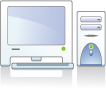
- Machines and routers. They are emulated GNU/Linux systems. A machine has up to eight
Ethernet cards and boots the distribution and the kernel chosen in its settings; a router has
4 to 16 ports.

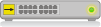
- Hubs, with 4 to 16 ports. A hub is a very simple component: it repeats every frame on
all its ports. It is mostly used in labs where an eavesdropping machine captures the network traffic.
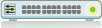
- Switches, with 4 to 16 ports. A switch sends a frame only to the port of its recipient:
the eavesdropper no longer sees the other machines’ traffic, and exchanges between different pairs of
machines take place in parallel, without slowing each other down. The switch is the one from
the VDE suite, which is configured in a terminal (the Show VDE terminal option). Its command
language does not have the syntax of Cisco’s IOS, but it is close to it in meaning (ports,
VLANs, spanning tree): students work with the same concepts.
- Straight and crossover cables. Choosing the right cable is up to the student: as in real
life, the wrong cable behaves as if there were no cable at all. Since 2026, a switch can also,
like most current models, detect the wiring by itself (the Auto MDI-X option): a cable of the
wrong kind then works anyway.


- Cloud. It represents a layer 2 link whose internals are left unspecified.

- Access to the real network. Three components connect the virtual network to the host’s
network. The Gateway requires no special privileges; the NAT bridge creates a private network, with DHCP,
DNS and, optionally, IPv6; the LAN bridge puts the virtual machines on the host’s local network.


The network diagram
The network is drawn automatically (by Graphviz), after every change: students never have to place a component, and most of the time they leave the diagram as it is. A palette, to the right of the diagram, nevertheless lets them tune it, in three groups:
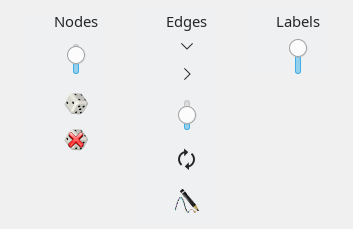
- Nodes: the size of the icons, without changing their arrangement; a random arrangement (the dice button), when the diagram does not look right, and a return to the default arrangement.
- Edges: the direction of the diagram, top to bottom or left to right; the minimum length of the cables; the reversal of a cable, picked from a list, which draws it the other way round and so reorganises the graph; straight or curved lines.
- Labels: the distance between the icons and the port numbers written at the ends of the cables.
The settings are saved with the project.
The network changes while it runs
As on hardware, you can unplug a cable and plug it in elsewhere without switching the machines off, and you can add or remove a component while the rest of the network keeps running. Defects can also be injected on each cable and each port, in each direction: a percentage of frames lost, duplicated or with flipped bits, and a delay between a minimum and a maximum.
The machines
- Ordinary GNU/Linux software runs on them as on any other system. Graphical applications, such as Wireshark, are displayed on the host’s screen.
- The addresses entered in the Interfaces tab are applied by the machine when it boots. A startup configuration (a script) can also run at boot, if the distribution supports it.
- Disks are copy-on-write: each machine only records its changes relative to its original image. A project can therefore store the state of all its machines in a file of reasonable size, and the history of states lets you take a machine back to an earlier state.
For teachers
-
Scripting. A control channel (the
--control-socketoption) lets a script, or an AI, drive Marionnet while its window stays open and usable. Teachers use it to prepare a lab and, after the session, to check and mark each student’s work. -
Exam mode. It stores four documents per machine in the project: a report of its final state, the timestamped history of the commands typed, the system console, and the terminal recording, which holds the commands and what they printed.
Everything is designed so that an AI can grade the students’ work: the project is saved as JSON, the documents are plain text, and a skill shipped with Marionnet guides the AI through marking and annotating. The teacher only has to state the assertions, that is, what must be true at the end of the session: “m1 is connected to the first port of the switch”, “routing is enabled on r1”, “m1 reaches m2”. The AI turns them into a correction key that the
mrn-verifytool checks on each student’s project, assertion by assertion. All that remains is to tell it how to grade from these verdicts: how many points each assertion is worth, and what to do with one that could not be checked, because a machine was not shut down properly, for instance. For each failure, the AI quotes the line of the terminal recording that shows it.
Installation
Marionnet installs with the distribution’s package manager, from signed repositories (apt for
Debian and Ubuntu, dnf for Fedora and the RHEL family, zypper for openSUSE). On other
distributions, a precompiled archive is installed by a script. The two large guest system images,
Debian wheezy, the image used by earlier versions, and trixie, the current one (Debian 7 and 13), are
then picked from a list with the marionnet-get-images command.
Finally, the privileges some components need are granted by the machine’s administrator through a
sudoers rule, one block at a time: a basic block, then one for the NAT bridge and one for the LAN
bridge.
The interface is available in thirteen languages: the original English and twelve translations. What changed in 2026 is detailed in What’s new in 2026.